Linux desktop AI · Version 0.5.4 · By Lorelei Noble · Updated October 26, 2026
Run local AI on Linux with Arynwood MCP
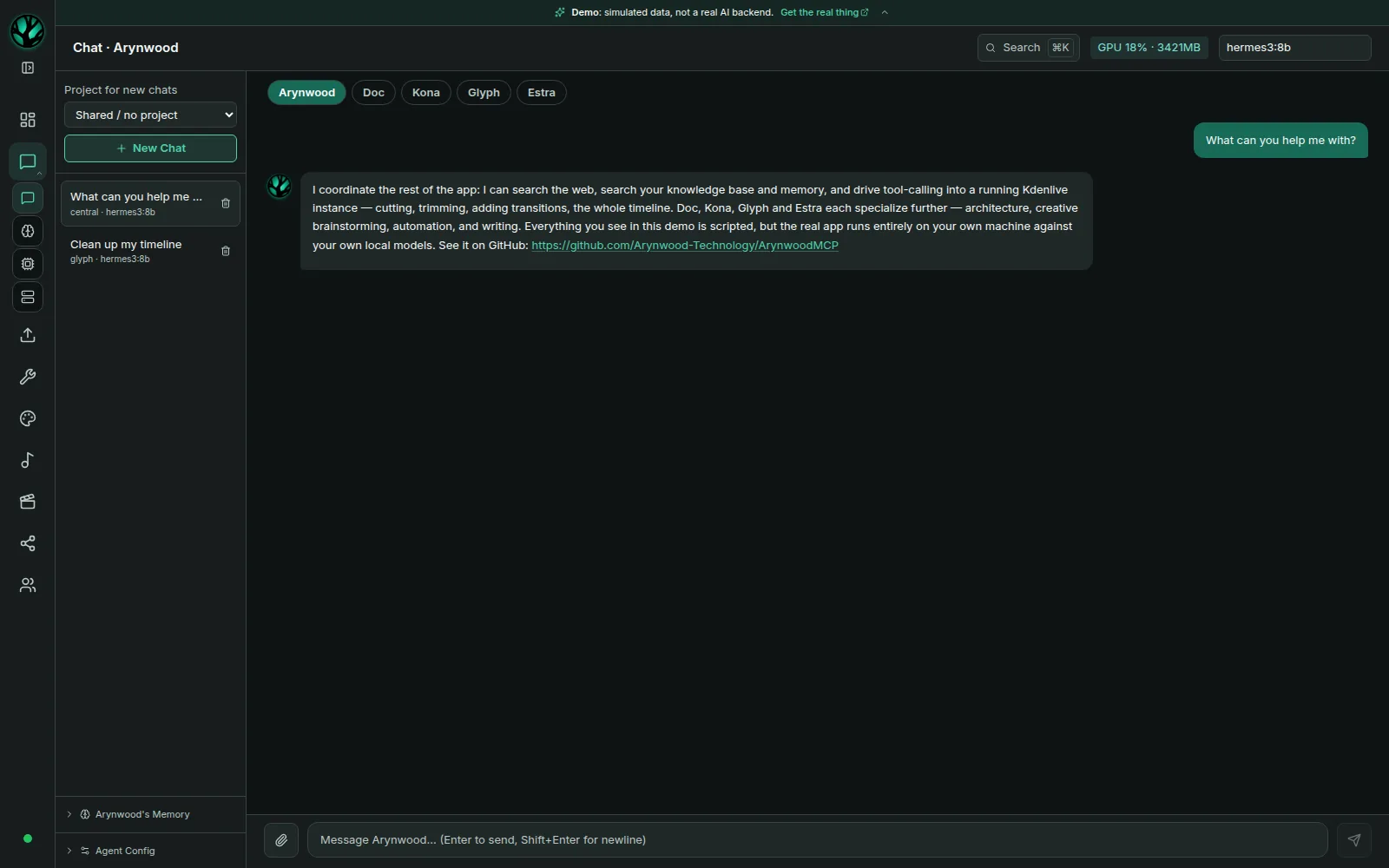
Arynwood MCP is an all-in-one local AI workspace for your Linux desktop. It combines a chat interface, model management, knowledge search and creative-tool connections. The desktop package contains the interface and backend; you install the models and supporting services separately.
This guide summarizes the v0.5.4 release and its installation documentation. It is a setup checklist. For measured CPU and GPU speeds, see Local AI without a GPU.
On Windows? v0.5.4 includes a Windows x64 alpha installer. It is unsigned, and the optional GPU tools and integrations have not been validated on Windows yet. Read the Windows setup and limitations before installing. The rest of this guide covers Linux.
What changed in 0.5.4?
It adds owner-signed checksums and tagged build attestations for all three packages. Microphone recording captures PCM through Web Audio; Stop opens the take for review, and the first Effects Rack audition advances correctly. Desktop script and connection policies, download addresses, popup completion checks, upload limits and token logging are tightened. The release remains a single-owner alpha with documented limits.
Included from earlier releases: the Community page with the screens from Arynwood Grove 0.7.1 (Messages between members with photos and files, Public chat when the Grove opens an IRC room, Lists with tabs, a space’s Files, and Webmaster tools with the site editor; they need a Grove on 0.7.1 or later), html-tools pages and media playback in the packaged app, and CPU chat that fits a small context with a Use tools setting (since 0.5.2); managing a space’s name, topic, owners and members (since 0.5.1); Community with a Grove on a server, and every page passing a 4.5:1 contrast check (since 0.5.0); Community inside the app (since 0.4.9), showing your Grove’s shared spaces from your computer or a server; automatic update checks at startup and every six hours while the app is open, with manual installation; checks send no credentials or workspace content to GitHub, which receives normal connection metadata including your IP address. CPU mode marks and disables NVIDIA-only tools while keeping CPU recording and editing available. Choose persistent chat and Design Center image endpoints on the Servers page. Hermes 3 now keeps system instructions when tools are attached, and MCP definitions and arguments are rechecked before dispatch. Read the updates and direct package downloads and the shipped security controls and remaining limits. Remote endpoints receive the prompts and data you send.
What hardware do you need?
| Component | Requirement |
|---|---|
| Operating system | Linux x86_64. AppImage or Debian/Ubuntu .deb. Windows x64 has a separate alpha installer (Windows notes). macOS is not supported. |
| Memory | 16 GB RAM in the project documentation; 8 GB can work with a smaller model or remote endpoint. Model size affects memory use. |
| Storage | At least 20 GB free, plus space for additional models and generated media. |
| Chat GPU | Optional. Ollama can run chat on a CPU, with slower responses. Measured CPU speeds. |
| Creative GPU tools | NVIDIA GPU required for the documented GPU services; at least 12 GB VRAM is the project’s practical recommendation. Heavy services compete for VRAM. |
Check the platform requirements before choosing which services to run.
Start with one local chat workflow
- Choose the package. Open the v0.5.4 release and download the x86_64 AppImage or .deb. Download SHA256SUMS and SHA256SUMS.asc and follow the signature and checksum verification guide.
- Install and launch. Make the AppImage executable and run it, or install the .deb using your package manager. Follow the installation instructions, including the GStreamer packages needed for .deb audio and video.
- Choose local chat or an endpoint. For remote chat, add an Ollama or OpenAI-compatible server and select Use for chat on the Servers page. For local chat, install Ollama and download models; Ollama is not bundled. Use the quick start to configure the models used by the personas. Match model size to your available RAM and GPU memory.
- Verify chat first. Check that Ollama is reachable, select an installed model and send a message. Resolve model-loading or service errors before adding creative tools.
- Add knowledge search when needed. Install Qdrant and the Ollama embedding model specified in the knowledge-base instructions. These support retrieval from your documents and memory.
Linux Mint: install to first chat
Linux Mint 22.x uses the Ubuntu 24.04 package base. This path uses the existing Ollama install command and Arynwood MCP’s documented package and CPU-chat steps. Mint-specific app installation is untested; the laptop benchmark tested Ollama, not this desktop app. Check the runtime baseline first.
- Install Ollama and pull a small model. Run these commands in a terminal:
curl -fsSL https://ollama.com/install.sh | sh
ollama pull llama3.2:1b
Install Arynwood MCP. Download the x86_64 .deb or AppImage and SHA256SUMS.txt from the release page. Compare the checksum before installing. In a terminal opened in the download folder, keep only the package you intend to install. Choose one route:
# .deb
sudo apt install ./arynwood-mcp_*.deb
# Documented media dependencies for the .deb
sudo apt install gstreamer1.0-plugins-good gstreamer1.0-plugins-bad gstreamer1.0-plugins-ugly gstreamer1.0-libav gstreamer1.0-pulseaudio

# Or AppImage
chmod +x arynwood-mcp_*.AppImage
./arynwood-mcp_*.AppImage
The AppImage bundles media plugins but needs the host ALSA runtime. The docs’ minimal-Ubuntu ALSA package command is untested on Mint’s newer package base; if dependencies are missing, use the platform and installation docs rather than guessing package substitutions.
Get the first reply. Launch the installed app, enter llama3.2:1b in the top bar, then open Agent Config, uncheck Use tools and click Save for plain chat. Send a message. While the model is loaded, run:
ollama psSuccess checks: ollama ps shows the selected model, and the first reply appears in Arynwood MCP. A completed download alone does not check chat. If the model is absent or the app reports an error, resolve it with the troubleshooting guide before adding other services.
Which features need extra setup?
- Image generation: A1111 runs as a separate service, or choose an OpenAI-compatible image endpoint for Design Center. Endpoint services receive your prompts and image inputs.
- Music and audio: install the MusicStudio sidecars and any models required by the specific feature. Models are not included in the desktop download.
- MCP and video editing: Kdenlive integration needs the compatible editor, a running MCP server and local server configuration. A fresh app install does not automatically connect these.
- Social publishing: requires network access and platform accounts. Remote model endpoints also send requests to the chosen service.
What is missing from the packaged alpha?
The Community page needs a Grove on 0.7.1 or later, installed separately. Messages and Public chat there go through the Grove’s server and are not end-to-end encrypted. LoRA training, script-based GPU tools such as Whisper and SadTalker, the project file browser and useful automatic project-tree context require a source checkout. The release download alone does not provide them.
The installation guide distinguishes script-based tools from separate HTTP services such as A1111. Consult the troubleshooting guide if a service is unavailable.
Is local AI private and offline?
Ollama inference runs on the machine hosting the model. For a local workflow, use local endpoints and installed models. Downloads, web search, remote endpoints and social publishing need network access. Review enabled integrations before using sensitive material; “local-first” describes a deployment choice, not a promise that every feature works offline.
Want help setting this up?
I offer paid local AI setup and workflow integration. Start with your hardware and one useful outcome, then scope the services needed to get there.
Explore local AI setup services
Running AI on your own Linux machine? Join the Linux Local AI Community on Facebook to compare setups and ask questions.